Defender for Endpoint enrollment
Don't let the title scare you — if you've already wired the Intune↔Defender connector, this is a 5-minute job. Step by step.
The title of this chapter may sound complicated, but it really isn't. If you've already configured the connector between Intune and Defender for Endpoint, this configuration is a 5-minute job tops. If you don't have the connector configured yet, see THIS article. If you do have the connector, let's walk through the configuration.
Open the Intune admin center > Endpoint security > Endpoint detection and response > Create policy.
Pick the Windows platform and the Endpoint detection and response profile, then click Create.
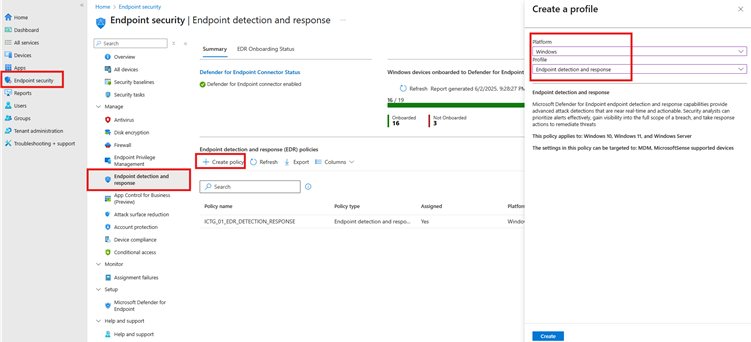
Name the policy and give it a description. Something like automatic enrollment for DfE.
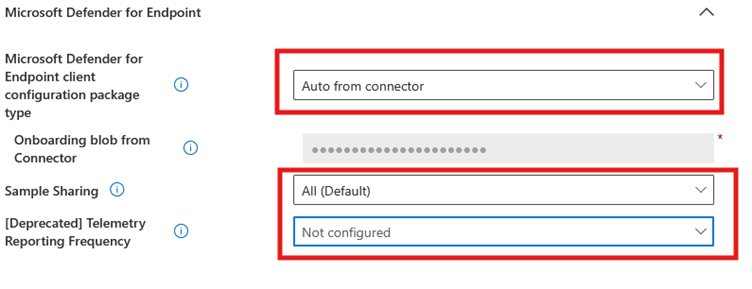
There isn't much to dream up in the settings:
Set Microsoft Defender for Endpoint client configuration package type to Auto from connector.
Set Sample Sharing to All.
The last field plays no role in the configuration because it's Deprecated.
I again leave Scope tag on Default and target the policy at a group with Entra Joined devices. And the first part of the AV is configured. In the next article we'll look at the second part!
Link to the cookbook HERE.